
Guide
Flowchart symbols and their meanings
Flowchart symbols show what kind of step each box is: an oval marks the start or end, a rectangle is a process, a diamond is a decision, a parallelogram is input or output, and arrows show the direction of flow. Those five cover most flowcharts. Below are all 19 common flowchart shapes and their meanings, plus rules and a worked example.
Where flowchart symbols come from
The shapes were standardized in the 1960s to document computer programs, first in the US as ANSI X3.5; today's international standard is ISO 5807 (1985).
Some shapes, such as delay, merge and the off-page connector, aren't separate ISO 5807 symbols; they come from older ANSI and IBM templates and spread through tools like Visio. New to flowcharts? Start with what a flowchart is.
Flowchart symbols in programming classes
Intro programming courses often split input and output further: manual input for keyboard entry, display for screen output and document for printouts, plus the preparation hexagon to set up loops. For homework or exams, follow your instructor's notation.
All 19 flowchart symbols and their meanings
Each entry gives the shape, its meaning and how to draw it in flowdraft. The first five are the core shapes.
Terminal (Start / End)
Marks where the flow starts and ends: an oval or pill labeled “Start” or “End”. Use one start, and ideally one shared end.
In flowdraft: The “Start / End” item in the palette.
Process
An action or calculation, such as “total = a + b”. The most common shape: a rectangle.
In flowdraft: A “Step” card; put detail in the subtitle.
Decision
A yes/no question, drawn as a diamond. It has at least two exits, each labeled with its answer.
In flowdraft: The “Decision” item; write each answer in the arrow's Label field.
Input / Output (Data)
Data coming in (reading user input) or going out (printing a result). A parallelogram.
In flowdraft: No parallelogram: use a “Step” card tagged INPUT or OUTPUT, with an icon such as PenLine or Monitor.
Flowline (Arrow)
Shows the order of steps, read top to bottom and left to right.
In flowdraft: Drag from a dot on a box's edge; style it in the right-hand panel.
Predefined Process (Subroutine)
A sub-process or function defined elsewhere, kept as one box here. A rectangle with double side lines.
In flowdraft: A “Step” card tagged SUBROUTINE with the Puzzle icon.
Document
A step that creates or reads a document or printout. A rectangle with a wavy bottom.
In flowdraft: A “Step” card tagged DOCUMENT with the FileText icon.
Multiple Documents
Several documents at once, drawn as a stack of document shapes.
In flowdraft: A “Step” card tagged DOCUMENTS with the Layers icon.
Database (Stored Data)
Data stored permanently, such as a table or records system. A cylinder.
In flowdraft: The ready-made “Database” card in the palette.
Manual Input
Data a person enters by keyboard or form. A quadrilateral with a sloping top edge.
In flowdraft: A “Step” card tagged MANUAL INPUT with the User or PenLine icon.
Manual Operation
Work done by hand, not by a system, like signing a form. A trapezoid narrowing toward the bottom.
In flowdraft: The “Person” card, or “Human approval” for sign-off steps.
Preparation
A setup step, like setting a counter before a loop. A hexagon.
In flowdraft: A “Step” card tagged SETUP or LOOP with the Settings or Repeat icon.
Loop Limit
A pair of shapes marking where a loop starts and ends, drawn as rectangles with two clipped corners.
In flowdraft: Two “Step” cards tagged LOOP START and LOOP END, or an arrow looping back.
Delay
A wait before the flow continues, like “Wait 24 hours”. Shaped like a capital D.
In flowdraft: A “Step” card tagged WAIT with the Hourglass or Timer icon.
Display
Information shown on a screen. Pointed on the left and curved on the right.
In flowdraft: A “Step” card tagged DISPLAY with the Monitor icon.
On-Page Connector
A small labeled circle joining two distant points on the same page without crossing lines.
In flowdraft: Rarely needed on an unlimited canvas; if you want one, put a “Chip” with the same letter at both points.
Off-Page Connector
A downward-pointing pentagon showing that the flow continues on another page.
In flowdraft: Rarely needed on one canvas; to split a flow, name the other flow on a “Chip”.
Annotation (Comment)
A note explaining a step, outside the flow: an open bracket joined by a dashed line.
In flowdraft: The “Note” item, linked with a dotted line and no arrowhead.
Merge
Where several flows or data sets come together into one. A triangle pointing down.
In flowdraft: No separate shape; connect the incoming arrows to the same card.
Basic flowchart symbols: the 5 you'll use most
For most algorithms and processes, these five are all you need:
| Symbol | Shape | Use it for | Example |
|---|---|---|---|
| Terminal | Oval | The first and last step | Start, End |
| Process | Rectangle | A calculation or action | total = a + b |
| Decision | Diamond | A yes/no question that branches | Is n > 0? |
| Input / Output | Parallelogram | Reading data, printing a result | Read n, Print result |
| Flowline | Arrow | The order of the steps | Start → Read n |
Add the other shapes only when they tell the reader something; extra symbols make a simple flow harder to read.
Example: a flowchart using many symbols (library book return)
This flowchart shows how a library handles a returned book. Besides the core shapes it uses manual input, a subroutine, a database, a document, an annotation and an off-page connector; in flowdraft each one becomes a tagged card, a note or a chip.
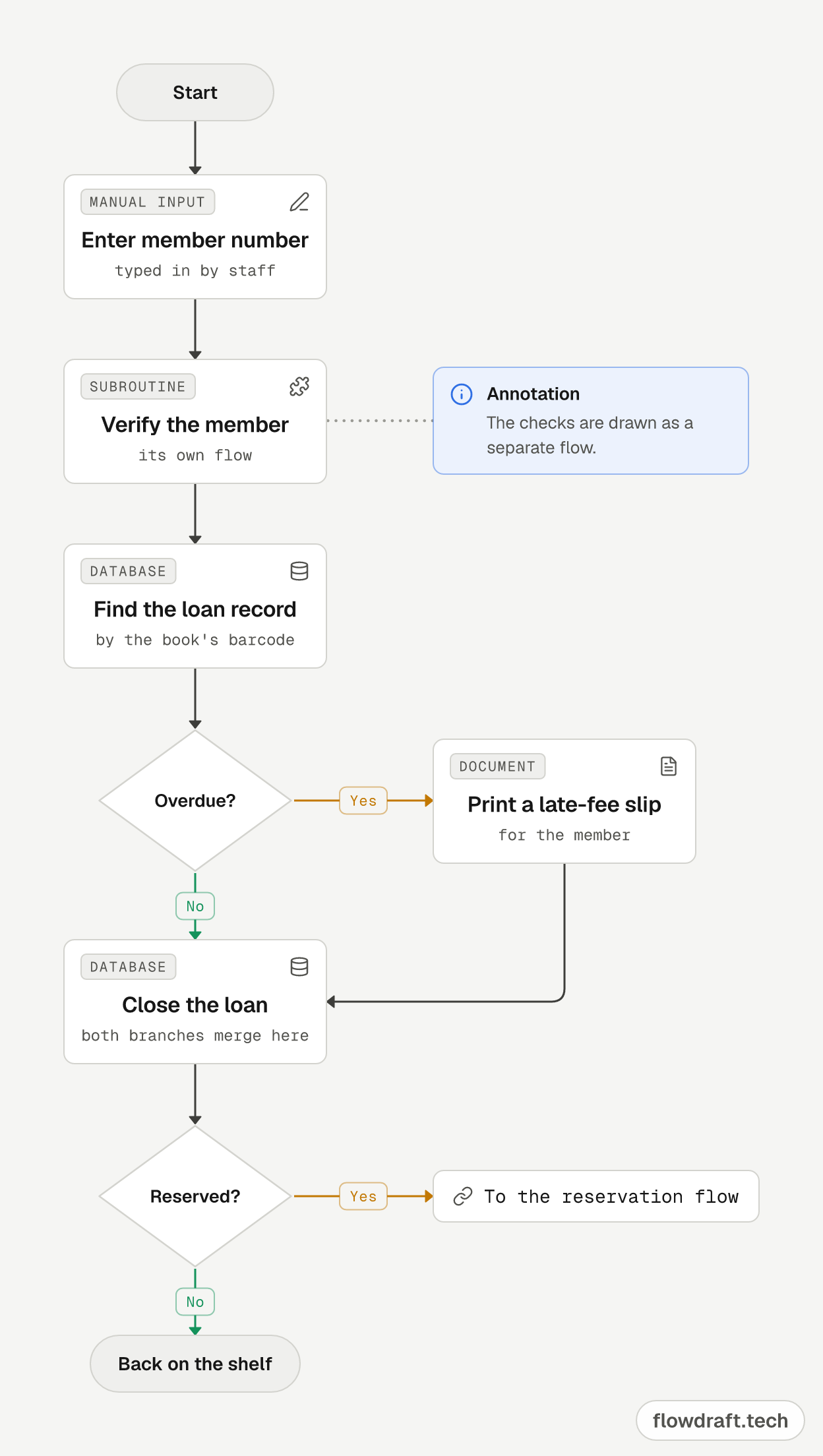
- Start (terminal): the flow begins.
- Enter member number (manual input): staff type it in. A shape with a sloping top on paper; a card tagged MANUAL INPUT in flowdraft.
- Verify the member (predefined process): a sub-process drawn in detail as its own flow; a card tagged SUBROUTINE in flowdraft. The blue note beside it is an annotation, not a step.
- Find the loan record (database): read from the records system. A cylinder on paper; the ready-made Database card in flowdraft.
- Overdue? (decision): Yes prints a late-fee slip (document); No goes straight down.
- Close the loan (database): both branches meet at one card, so no separate merge shape is needed.
- Reserved? (decision): if someone has reserved the book, the flow moves on to the reservation flow. That chip stands in for the off-page connector, a pentagon on paper. Otherwise the book goes back on the shelf and the flow ends.
For algorithms drawn with only the core symbols, such as a grade average, even or odd, or a factorial, see the flowchart examples.
Rules for using flowchart symbols correctly
- Use one start. Every path must reach an end; leave no arrow hanging.
- Give every decision at least two labeled exits: Yes/No, True/False or “> 0” / “≤ 0”.
- Phrase decisions as yes/no questions: “Grade ≥ 50?”, not “Grade?”.
- Keep one direction, top to bottom or left to right; only loops go back.
- One action per box, starting with a verb: “Read the number”.
- Same meaning, same shape throughout the diagram.
- Avoid crossing lines; rearrange the layout or use a connector.
Common flowchart mistakes
- A decision with one exit or unlabeled arrows, which leaves the reader guessing.
- Input and output drawn as rectangles; exams usually expect a parallelogram.
- No end, or a branch that connects to nothing.
- Several actions in one box. “Read the numbers, add them and print the sum” is three steps.
- No starting value before a loop, such as “i = 1”.
- Missing arrowheads where the flow runs up or right to left.
How to draw flowchart symbols in flowdraft
flowdraft is a free browser-based flowchart editor for desktop, phone and tablet. Draw without an account; your work stays on the device as a draft.
- Open the editor and drag or click Start / End, Step or Decision from the parts panel on the left (on a phone, tap Add).
- Fill in a card's Title, Subtitle, Tag and Icon; tag input/output steps INPUT or OUTPUT.
- Drag from the dots on a box's edge to connect it; click an arrow to style it or add a Label like Yes or No.
- Sign in with a free account to save to the cloud and Export a PNG image, an SVG vector or editable JSON.
Want AI to draw it from a description? Connect flowdraft to ChatGPT, Claude or Cursor: see the ChatGPT flowchart guide and the setup steps, or watch the 30-second tour.
Frequently asked questions
How many flowchart symbols are there?
This page covers 19: the ISO 5807 symbols plus a few common extras. Most everyday flowcharts use only the five basic ones.
What are the basic flowchart symbols?
Five cover most flowcharts: the oval (start/end), the rectangle (process), the diamond (decision), the parallelogram (input/output) and the arrow (flowline).
What does a diamond mean in a flowchart?
It's the decision symbol: a yes/no question with at least two exit arrows, each labeled with its answer.
Which flowchart symbol is used for input and output?
The parallelogram. Some textbooks also use manual input for keyboard entry, display for screen output and document for printouts.
How do you show a loop in a flowchart?
Usually with an arrow from the last step of the loop back to the decision that checks it. Some courses use the preparation hexagon, and ISO 5807 defines a pair of loop limit symbols.
Do I need an account to draw a flowchart in flowdraft?
No. Your drawing stays on your device as a draft. Saving to the cloud and exporting PNG, SVG or JSON need a free account.